photosmerge

Free browser-based image tool

Photo Merge Online: Combine Two or More Photos

Arrange two or more photos side by side, one above another, in a grid, or freely. Preview the canvas, then download one JPG, PNG, WebP, or PDF file. The merge runs in your browser, with no account or watermark.

Drag and drop files here. You can also paste from your clipboard.

Put your photos together in one file

Use a shared canvas when you want people to compare two versions, review several product angles, or follow a short sequence without opening separate files. Choose a layout, set the spacing, and check that every image is easy to see before you download.

Add up to 20 images, with a 20 MiB limit per file. You can reorder, rotate, duplicate, or remove images, then choose a background and export format. PhotosMerge processes source images in your browser for the preview and export; using your device's share feature sends the exported file to the app or person you select.

Quick facts

Add files
JPG, PNG, WebP, GIF (first frame)
Layouts
Side by side, vertical, grid, free
Download
JPG, PNG, WebP, one-page PDF
Limits
20 images; 20 MiB per image
Privacy
Source images processed in your browser
Cost
Free; no account or watermark
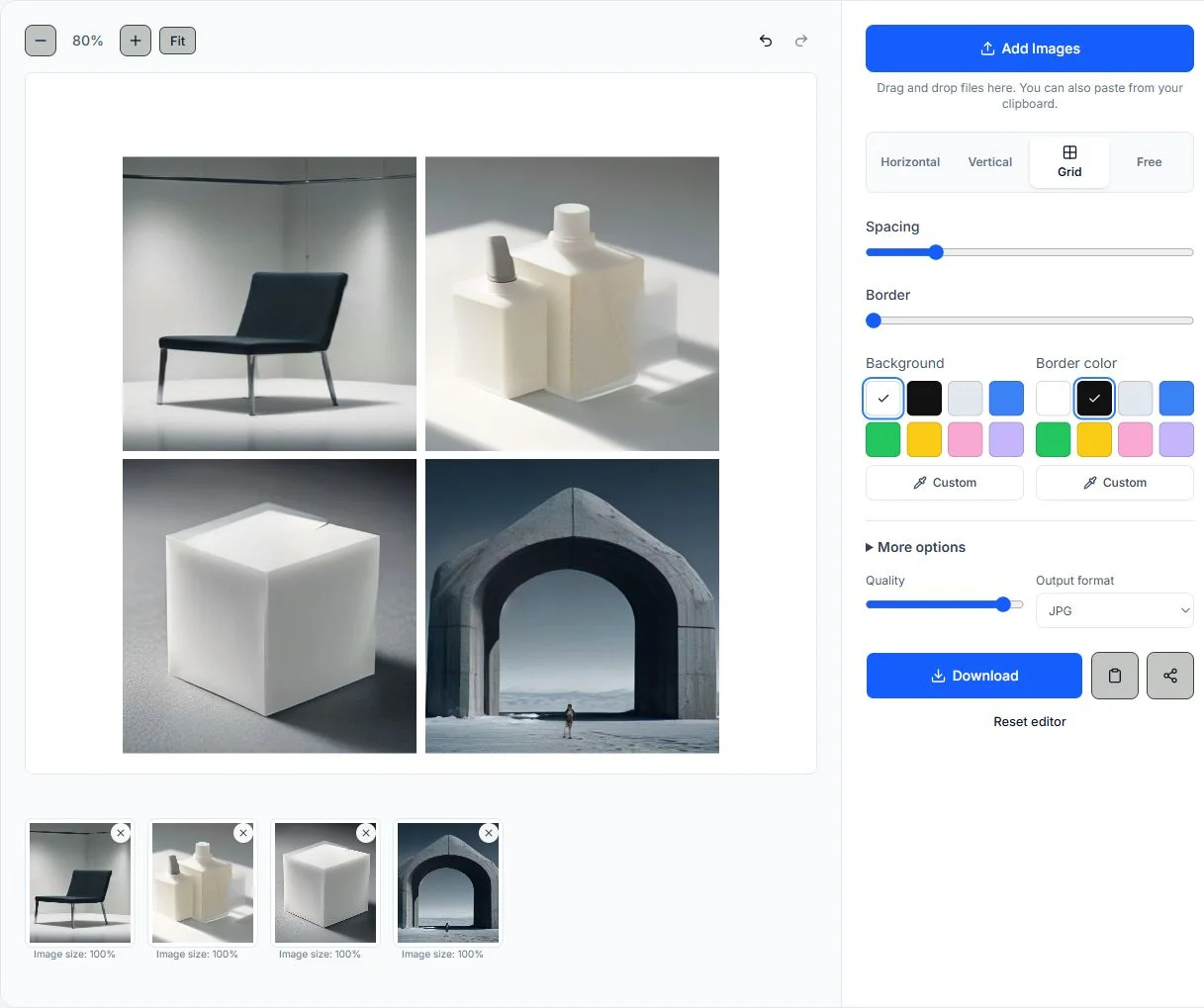
PhotosMerge editor with example photos and layout controls
A real editor view with example photos. Choose a layout, check the preview, and download your combined file.

How to Merge Photos Online

Add your images, choose how to arrange them, adjust the canvas, then download the result. The preview updates as you work.

  1. 1

    Add your images

    Select Add Images, drag files into the editor, or paste images from your clipboard. PhotosMerge accepts JPG, PNG, WebP, and GIF files. The editor keeps the order in which images are added, and every thumbnail has its own remove, rotate, and duplicate controls.

  2. 2

    Choose a layout

    Choose Horizontal for a side-by-side image, Vertical to stack images from top to bottom, Grid for a tiled layout, or Free to place each image yourself.

  3. 3

    Adjust the result

    Set the gap between images, add a border, choose colors, change the margin, and select a square or circular shape. The advanced panel includes size handling, corner radius, shadow, transparency, and a maximum pixel setting for easier sharing.

  4. 4

    Preview and download

    Review the canvas at a comfortable zoom, undo a change if needed, and download JPG, PNG, WebP, or PDF. PNG is useful for transparency, JPG works well for everyday photos, WebP is suited to web sharing, and PDF keeps the complete merge on one shareable page.

Choose how the images should fit together

PhotosMerge arranges existing images on one canvas. It does not blend them together or generate a new image with AI. Pick the layout that makes the relationship between your photos clear.

Side-by-Side Photo Layout

Use a horizontal layout when you want related photos to be compared at a glance, such as original and edited versions, product angles, or design options. Keep the order clear and adjust the gap until neighboring images are easy to distinguish.

Combine Images Vertically

Choose Vertical to place images one below another, in the order you add them. This works well for instructions, receipts, or a sequence of screenshots. It does not automatically align matching screenshot areas or remove overlap.

Arrange Photos Together

Add the source files, choose Horizontal, Vertical, Grid, or Free, and adjust the gap until each image has room. The preview helps you check the reading order before creating one shareable file.

Combine Images in One File

When you need to combine images into one file, inspect the preview, select a format, and download. JPG suits photographs, PNG can preserve transparency, WebP is useful for web sharing, and PDF places the layout on one page.

Photo Merge Features

Preview and export in your browser

The editor uses your browser to arrange source images and create the download. PhotosMerge does not need to receive the source files for the merge.

Four practical layouts

Switch between horizontal, vertical, grid, and free layouts as your images change. The canvas updates without making you start over.

Spacing, borders, and backgrounds

Control spacing, border width, background color, border color, shape, corner radius, shadow, margin, and transparent output.

Simple image controls

Rotate, duplicate, reorder, remove, undo, and redo while keeping each source image visible in the thumbnail strip.

Download the format you need

Export the full canvas as JPG, PNG, WebP, or a single-page PDF. Choose PNG when you need transparent space; JPG and WebP are convenient for sharing.

A mobile-friendly workflow

The editor stacks its preview and controls on smaller screens, so you can combine photos from a phone or tablet without losing the key actions.

Photo Merge Use Cases

Before-and-after comparisons

Show progress across selected stages of a renovation, retouch, restoration, fitness plan, or design revision in one image that is easy to scan and share.

Product and design comparisons

Place product angles, color options, package versions, or interface drafts together for a clearer review with a client or team.

Social media collages

Use Grid to combine a group of photos into a balanced collage for a post, story, portfolio update, or event recap.

Screenshots, receipts, and visual briefs

Arrange screenshots, receipts, instructions, recipe steps, or reference pictures into one file that is easier to attach to a message or document.

Choose an export format and check the canvas

JPG works well for everyday photos, PNG keeps transparent areas, and WebP is useful for sharing online. PDF saves the complete merged canvas as a single page. JPG, PNG, WebP, and GIF can be added as source images; animated GIFs use their first frame. Keep the spacing even and check the full canvas before downloading. Each source image can be up to 20 MiB, and very large canvases may take longer on devices with limited memory.

Written and maintained by the PhotosMerge team ยท Updated November 4, 2026

How images are processed

Your browser loads each source image and draws the finished layout locally. The guides below explain the browser file and canvas features used in that process.

Photo Merge FAQ

How do I combine photos into one image?

Add two or more images, choose a layout, and adjust the spacing. Check the preview, then download the complete canvas as one image or a single-page PDF.

Which image formats can I use?

You can add JPG, PNG, WebP, and GIF files. Animated GIFs are represented by their first frame. Downloads are available as JPG, PNG, WebP, or PDF. PDF creates a single-page document from the merged canvas.

Are my images uploaded?

No. The editor loads source images in your browser, and the preview and export do not send them to PhotosMerge. If you choose your device's share option, the exported file is handed to the app or person you select.

Can I export the merged images as a PDF?

Yes. Choose PDF in the export format options to save the complete merged canvas as a single-page document. PDF is useful for printing, attaching to documents, or sharing a layout without changing the image arrangement.

Can it automatically stitch overlapping screenshots into a long image?

No. Vertical layout places each image below the previous one in the order you add them. It does not find matching areas or remove overlap automatically.

Does photo merge work on mobile?

Yes. The editor changes to a stacked layout on smaller screens. Select files from your device, use the same layout controls, and download the finished image when the preview is ready.

Combine Your Photos in One Clean File

Add the photos you want to combine, choose a layout, and download one shareable file when the preview looks right.

Back to Photo Merge