
photosmerge

Free four-photo collage maker

Merge Four Photos Online

Make a four-photo grid for product options, an event recap, or a short guide. Arrange the images, check the spacing and order, then download the full canvas as one file.

Drag and drop files here. You can also paste from your clipboard.

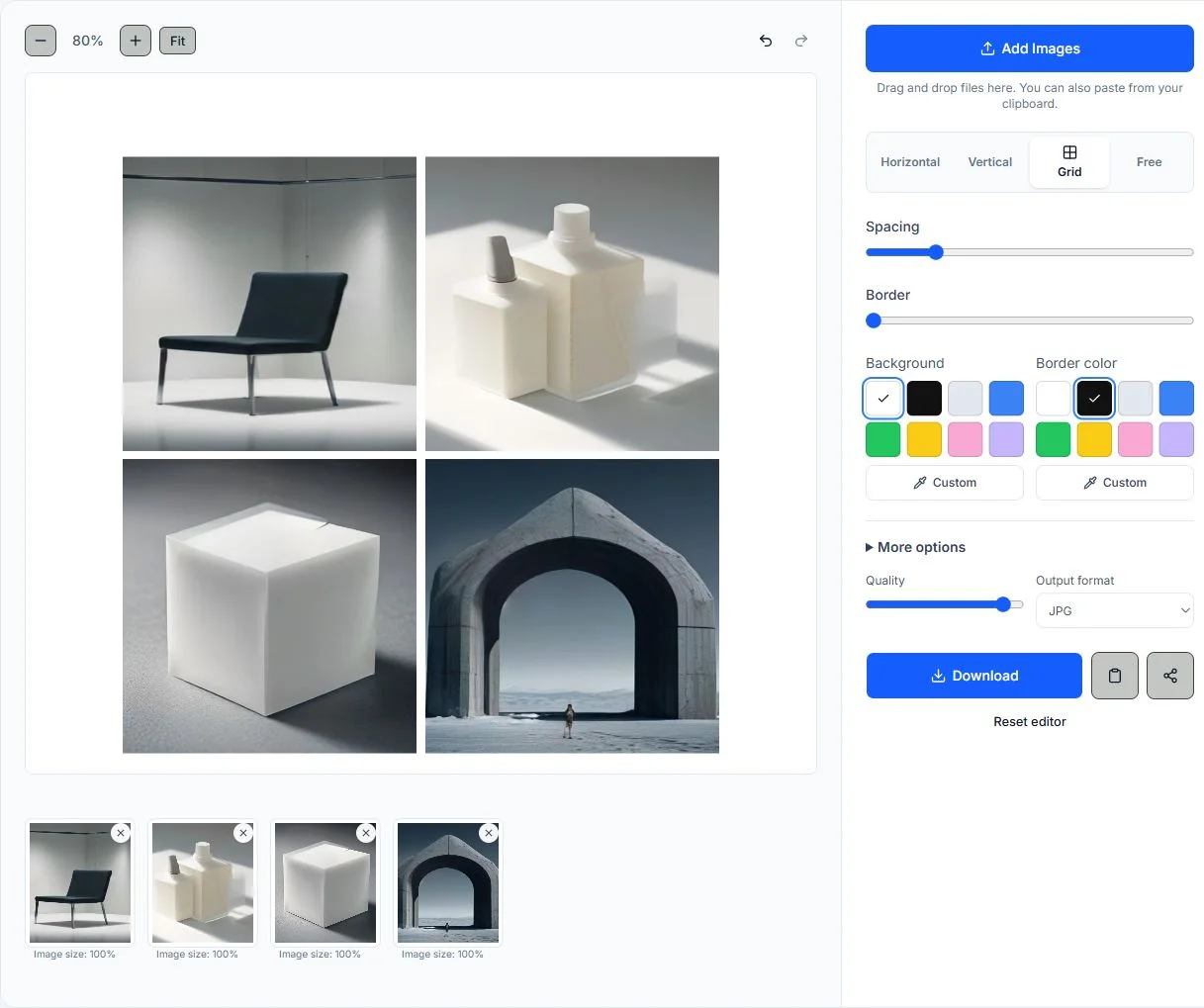
Start with a balanced 2×2 grid

A two-by-two grid gives each photo the same amount of space, which works well for comparing four options or collecting four moments. Use a row or vertical sequence when the order matters more than equal-sized tiles.

Add up to 20 images, with a 20 MiB limit per file. Reorder, rotate, or resize a tile before you save the complete canvas.

Quick facts

Add files
JPG, PNG, WebP, GIF (first frame)
Layouts
Side by side, vertical, grid, free
Download
JPG, PNG, WebP, one-page PDF
Limits
20 images; 20 MiB per image
Privacy
Source images processed in your browser
Cost
Free; no account or watermark
PhotosMerge editor with example photos and layout controls
A real editor view with example photos. Choose a layout, check the preview, and download your combined file.

How to combine four photos

Add the photos, choose a grid or another layout, adjust the canvas, then download after checking the full preview.

  1. 1

    Add your images

    Add four source images and confirm the order in the thumbnail strip. Remove a duplicate or rotate one tile before choosing the final arrangement.

  2. 2

    Choose a layout

    Choose Grid for a balanced 2×2 layout, Horizontal for a row, Vertical to stack images in order, or Free to position each photo yourself.

  3. 3

    Adjust the result

    Tune the grid columns, rows, gap, margin, background, border, corner radius, and image scale. Keep the spacing consistent so the four tiles read as one set.

  4. 4

    Preview and download

    Inspect the full canvas and choose JPG, PNG, WebP, or PDF. PDF saves the complete four-photo canvas on a single page.

Choose a layout for four photos

Confirm the image order before arranging the canvas. In Free mode, resize and position each photo when one image needs more space than the others.

Compare four photos side by side

A horizontal row lets viewers compare four photos at once, such as four products, room angles, or event moments. Use a consistent gap and a wide canvas when the final file will be shown on a desktop or presentation slide.

Stack four photos in order

Use a vertical stack for a guide or four-part story. Images appear one below another in the order you add them; overlapping screenshots are not aligned or merged automatically.

Arrange the four photos

Confirm the order, then choose a layout. Free mode lets you give one lead photo more space while the other three act as supporting images.

Place four photos in a 2×2 grid

A two-by-two layout is the simplest way to put four photos in one grid with equal weight. Adjust rows, columns, spacing, and scale to make a clean contact sheet, comparison board, or four-photo collage.

Photo Merge Features

Preview and export in your browser

The editor uses your browser to arrange source images and create the download. PhotosMerge does not need to receive the source files for the merge.

Four practical layouts

Switch between horizontal, vertical, grid, and free layouts as your images change. The canvas updates without making you start over.

Spacing, borders, and backgrounds

Control spacing, border width, background color, border color, shape, corner radius, shadow, margin, and transparent output.

Simple image controls

Rotate, duplicate, reorder, remove, undo, and redo while keeping each source image visible in the thumbnail strip.

Download the format you need

Export the full canvas as JPG, PNG, WebP, or a single-page PDF. Choose PNG when you need transparent space; JPG and WebP are convenient for sharing.

A mobile-friendly workflow

The editor stacks its preview and controls on smaller screens, so you can combine photos from a phone or tablet without losing the key actions.

Ideas for a four-photo collage

Four-stage progress boards

Show four stages of a renovation, restoration, recipe, or creative project in one image. Vertical works for a numbered sequence, while a grid makes each stage easy to compare.

Catalog and product comparison

Combine four product variants, colors, package designs, or camera angles into a single review sheet. A four-photo grid gives every option the same visual weight for faster decisions.

Event and portfolio highlights

Create a four-photo collage from an event, trip, campaign, or portfolio session. Use Grid for a balanced share image, or Free when one hero photo should lead the composition.

Four screenshots in one file

Place four screenshots, receipts, references, or support steps into one attachment. Reorder the thumbnails and choose a readable canvas before exporting so the recipient can follow the sequence.

Check the four-photo canvas and export format

A 2×2 grid gives each photo equal space; a row or vertical stack makes the reading order clearer. JPG, PNG, WebP, and GIF can be mixed on the canvas; animated GIFs use their first frame. Download the complete canvas as JPG, PNG, WebP, or a single-page PDF. Check the image order and spacing before saving. Each source file can be up to 20 MiB.

Written and maintained by the PhotosMerge team · Updated November 4, 2026

How images are processed

Your browser loads each source image and draws the finished layout locally. The guides below explain the browser file and canvas features used in that process.

Questions about combining four photos

How do I merge four photos into one file?

Add the four images, choose Grid or another layout, then check the preview. Download the full canvas as JPG, PNG, WebP, or a single-page PDF.

What is the best layout for four photos?

Use a two-by-two grid for equal comparisons, Horizontal or Vertical for a clear sequence, and Free mode when one image should be larger. Choose the layout based on how the final file will be viewed.

Can I combine photos in different formats?

Yes. Add JPG, PNG, WebP, and GIF images to the same canvas; an animated GIF uses its first frame. Download the result as JPG, PNG, WebP, or a single-page PDF.

Are my four photos uploaded?

No. The editor loads source images in your browser, and preview and export do not send them to PhotosMerge. If you use your device's share option, the exported file is handed to the app or person you select.

Can I merge more than four photos?

Yes. Four photos are the focus here, but you can add up to 20 images. Grid and Free layouts are useful when the collection grows.

Make a four-photo collage

Add four images, balance the grid, and download one ready-to-share file without uploading your originals.

Merge four photos now