photosmerge

Free photo PDF maker · No signup

Merge Photos to PDF Online

Add JPG, PNG, WebP, or GIF images and download one single-page PDF. Arrange up to 20 photos, each up to 20 MiB, in your browser. Your originals stay unchanged, and no watermark is added.

Drag and drop files here. You can also paste from your clipboard.

Turn several pictures into one shareable document

Merge photos to PDF when someone needs to open several pictures together: product angles, design references, or a visual record. Arrange the pictures on one canvas instead of sending separate attachments, then save that layout as a PDF. The reading order, spacing, and background follow the preview.

PDF and Vertical are selected when you start. Switch to Horizontal, Grid, or Free before downloading if another arrangement works better. Every image appears on the same page; adding photos does not add PDF pages. The merge needs no account, payment, or upload. Use a multipage converter when each photo needs a separate page.

Quick facts

Add files
JPG, PNG, WebP, static GIF image
Layouts
Vertical, horizontal, grid, free
Download
Single-page PDF; optional JPG, PNG, WebP
Limits
20 images; 20 MiB per image
Privacy
Source images processed in your browser
Cost
Free; no account or watermark
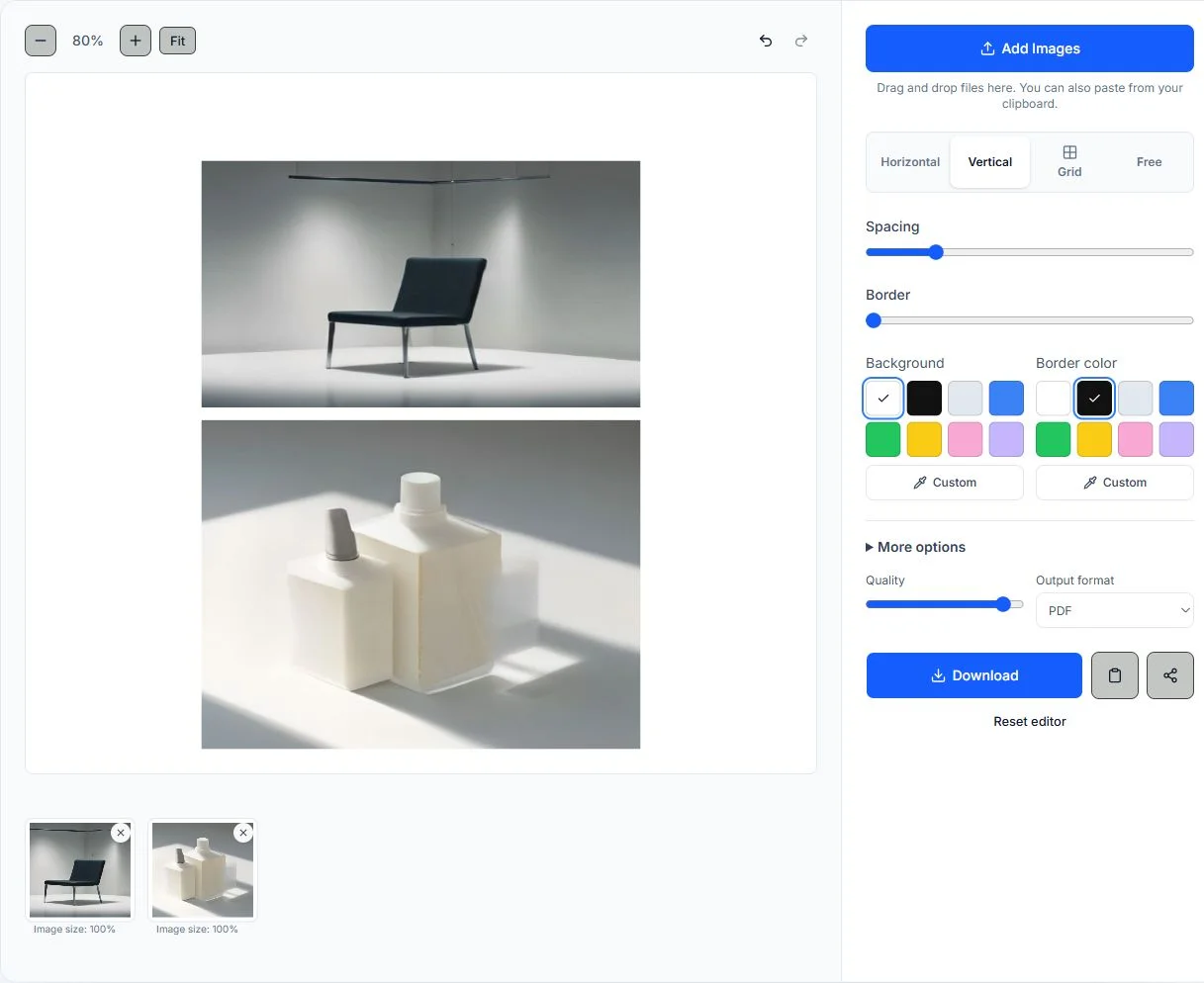
PhotosMerge editor showing example photos arranged together with PDF selected as the output format
A real editor view with example photos and PDF selected. Review the layout here, then inspect the downloaded document before sharing.

How to merge photos into one PDF

Select only the pictures the recipient needs. Fewer images are easier to read when someone opens your PDF on a phone or prints it on paper.

  1. 1

    Add the pictures

    Select Add Images, drop files into the editor, or paste pictures from your clipboard. Choose JPG, PNG, WebP, or GIF files within the 20 MiB limit. Keep the total at 20 images or fewer. If your phone supplies HEIC files, export them as JPG or PNG first.

  2. 2

    Set the reading order

    Review the pictures from top to bottom in the default Vertical layout. Select a picture on the canvas and use the forward or backward controls to change its position. Rotate a sideways photo before judging the arrangement. Switch to Grid if the vertical preview becomes too long.

  3. 3

    Make the layout readable

    Adjust spacing and margin so neighboring pictures stay distinct. Use a background for receipts or reference images, and avoid heavy borders around small text. Check every edge after changing image size or layout. Undo an image edit if it removes information you wanted to keep.

  4. 4

    Check PDF and download

    Confirm PDF under Output format, then choose Download. Open the saved document and inspect small details before sending it. Your source photos stay unchanged. Copy image copies a PNG to the clipboard, even when PDF is selected; use Download for the document.

Choose a single-page photo PDF layout

Choose how the recipient should compare or follow your pictures. Switch layouts with the same selection, then inspect the whole canvas before exporting.

Put comparison photos side by side

Horizontal works for an original beside an edit, two fabric choices, or different product angles. Keep related pictures next to each other and use a gap. Many wide photos can create a wide PDF page, so consider a grid when the comparison grows.

Combine screenshots into a PDF sequence

Vertical follows a natural reading direction for instructions, screenshots, and short visual stories. Set the order yourself and check repeated areas between screenshots. The tool places complete pictures below one another; it does not detect overlapping text, remove duplicate sections, or turn a long sequence into multiple pages.

Make a compact photo grid

Grid is useful when you want several pictures visible together without a very long page. Choose the column count and compare the resulting tile sizes. Mixed portrait and landscape images can lose edge detail when fitted into common tiles, so inspect the preview carefully before saving.

Arrange a visual brief freely

Free layout lets you position pictures yourself for a reference board or informal brief. Leave enough separation to keep the order understandable. For documents that depend on exact alignment, compare your final download with the preview rather than relying on how individual thumbnails look.

Controls that help you prepare the PDF

Keep source photos on your device

The editor reads your pictures in your browser and creates the preview and download locally. Source photos are not uploaded to PhotosMerge for conversion. Choosing Device share hands the exported file to the app or person you select.

Mix JPG and PNG in one PDF

You can combine supported formats in the same selection. There is no need to convert every picture to the same format beforehand. A GIF contributes a static image, so the downloaded PDF does not preserve animation.

Control the space around pictures

Spacing separates neighboring photos; margin adds room around the entire arrangement. Background and border colors help pale images stand out. Transparent areas are placed against white in the PDF, so use PNG output instead when transparency matters.

Correct order and orientation

Select a picture to rotate, flip, duplicate, reorder, or remove it. These edits change the arrangement you export while leaving the original file alone. Undo and redo help you compare image edits without adding the source files again.

Balance file size and detail

The PDF contains a JPEG image of your finished canvas. Lowering Quality can reduce file size but may blur fine text. The maximum pixel setting limits large canvases; increasing it cannot restore detail already lost when photos were resized.

Start again with a clean selection

Reset editor clears your pictures and restores PDF and Vertical. Download anything you want to keep before resetting or leaving the page.

When a photo PDF is useful

Product photos for a buyer

Collect the front, back, and detail views in a small grid so the recipient can compare them in one attachment. Keep essential labels readable, and send the originals separately when the buyer needs to inspect texture or tiny markings.

A reference board for a project

Combine color references, material photos, or design directions into one visual brief. A consistent background and even gaps make the relationships easier to follow. This is a picture arrangement, so add written explanations separately if the recipient needs context.

Receipts and short visual records

Place a few related receipts or progress photos together for your own records. Check dates, totals, and small print after downloading. For official submissions, first confirm the required page size, resolution, and file limits with the recipient.

Instructions shared from a phone

Choose only the screenshots needed to explain the task, then put them in order. A compact sequence is easier to zoom through than a crowded contact sheet. Crop private notifications in your source screenshots before adding them to the document.

Check image quality before printing or sending

Photos are resized for the shared canvas, and the PDF is a flattened image rather than a collection of full resolution originals. Zooming into the downloaded document is the most useful check for small text, faces, and product details. Enlarging a low resolution source will not make it sharper. The page follows your canvas proportions. There is no A4 or Letter preset, automatic pagination, searchable text, or OCR. A tall layout may shrink substantially when printed on one sheet. Use fewer pictures or a compact grid for a small printout, and use a document editor when exact paper dimensions or separate pages are required.

Written and reviewed by the PhotosMerge team · Updated November 14, 2026

How images are processed

Your browser loads each source image and draws the finished layout locally. The guides below explain the browser file and canvas features used in that process.

Questions about merging pictures into PDF

Will each photo become a separate PDF page?

All pictures are combined on one PDF page matching the complete canvas. Adding more images extends or rearranges that canvas rather than adding document pages. Use a multipage converter when each photo must occupy its own page.

Can I combine JPG and PNG into one PDF?

You can mix JPG, PNG, WebP, and GIF files in one arrangement. Each file must be 20 MiB or smaller, with up to 20 images in total. HEIC and existing PDF files cannot be added directly.

Can I merge photos to PDF without uploading them?

The preview and PDF download are created in your browser without uploading the source pictures. No account or payment is required for this workflow. If you use Device share, the finished file goes to the destination you choose.

Does the PDF preserve original photo quality?

Images are resized for the layout, then the finished canvas is saved with JPEG compression inside the PDF. Keep the original photos for full resolution editing or large prints. Review small text in the downloaded file before relying on it.

How do I save a photo PDF on my phone?

Open this page in your phone browser, select supported photos, and check PDF under Output format. Choose Download, then look in the browser downloads or your device's file app. The exact save location depends on your browser and phone settings.

What should I try if a photo or download fails?

Check the file format and 20 MiB limit, then try a smaller image or fewer pictures. A damaged file may need to be opened and saved again in another image app. If export still fails, lower the maximum pixel setting and retry.

Prepare your photo PDF

Choose the pictures, set a clear reading order, and check the smallest details before downloading your document.

Back to the PDF tool